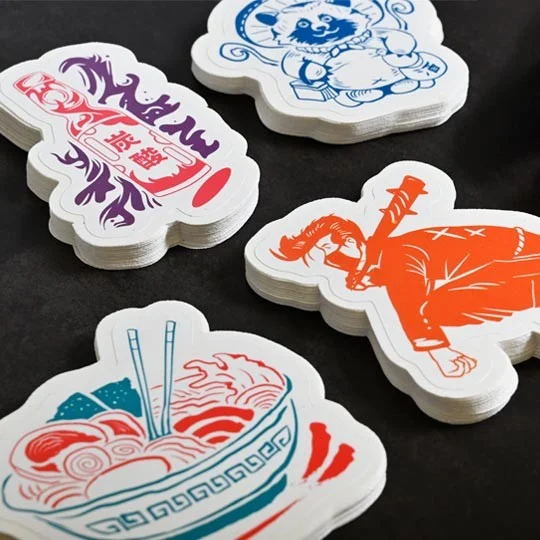
A sticker design tool with an automatic die cut outline feature traces your artwork and adds an offset cut line around it. Adobe Firefly’s sticker generator handles the design side, removing backgrounds, adding a white sticker border, and exporting a PNG with a transparent background that cutting software can turn into a die cut path.
If you’ve ever tried to draw a cut line around a sticker by hand, you know how slow and fiddly it is. One shaky curve and the blade slices into your artwork or leaves an awkward chunk of blank paper. Automatic outline tools solve that by reading the edges of your design and building a clean path a set distance outside it. The best results come from pairing two kinds of tools: one that creates sticker-ready artwork, and one that turns that artwork into a precise cut line for a cutting machine or print shop.
How Does Auto Trace Create a Sticker Outline and Cut Line?
Auto trace creates a sticker outline and cut line by detecting the edges of your image and converting them into a path a cutting machine can follow. It works best when the design sits on a transparent or plain background with strong contrast between the art and the empty space around it.
Once the outer edge is traced, an offset expands that path outward to create the border you see on finished die cut stickers. In Silhouette Studio, for example, you can trace the outer edge of an imported image and then add an offset to create the cut line.
Auto trace isn’t perfect. Designs with soft edges, shadows, or busy backgrounds can produce stray lines inside the image. If that happens, delete the inner cut lines so only the outside path remains, or start with cleaner artwork.
How to Create a Sticker Die Cut With an Automatic Outline
To create a sticker die cut with an automatic outline, prepare clean artwork first, then let your cutting software build the cut line.
Design the art: In Firefly, upload a photo or write a prompt, use background removal to isolate your subject, and ask for a white sticker border.
Export cleanly: Download a PNG with a transparent background so the outline tool sees only your design.
Add the offset: Import the PNG into your cutting software and apply an offset to generate the outline.
Combine and cut: In Cricut Design Space, flattening the design with its offset lets the machine print the sticker and cut only the outside line.
Check your machine’s limits before printing. Guides note that Cricut’s Print Then Cut works within a maximum size of 6.25 by 9.75 inches.
Which Cutline Generator Makes an Automatic Outline?
Several cutline generator tools make an automatic outline, and the right one usually depends on the cutting machine you own. The table below compares four options for the design and cut-line steps.
| Platform | Best for | Key details |
| Adobe Firefly | Creating sticker-ready artwork from photos or prompts | Background removal; white border and transparent background by prompt; Generative Fill and Generative Remove; PNG download; continue editing in other Adobe apps; Firefly model output safe for commercial use |
| Cricut Design Space | Cricut machine owners making print-and-cut stickers | Offset feature adds outlines around images and text; Print Then Cut on Maker, Explore, Venture, and Joy Xtra; Create Sticker option for Cricut Access members |
| Silhouette Studio | Silhouette machine owners | Traces outer edges of imported images; offset tool creates the cut line |
| Adobe Illustrator | Designers who need precise vector cut paths | Offset path tools for building custom outlines around artwork |
Firefly and Illustrator work well together, since Firefly lets you continue editing your design in other Adobe apps.
Using a Sticker Generator for Die Cut Outline Designs
A sticker generator makes die cut outline designs easier by producing artwork that traces cleanly from the start.
In Firefly, include sticker terms in your prompt, such as “white sticker border,” “transparent background,” and “cartoon style,” which Adobe recommends for sticker results. A thick, even white border gives your cutting software a smooth edge to follow and leaves room for small cutting variations.
Keep shapes simple. Thin tails, loose strands, and tiny gaps are hard to cut and easy to tear. If a design has a detail that will cause trouble, Generative Remove can erase it, and Generative Fill can smooth out awkward areas.
For a full set, Firefly can generate sticker collections from a single character or theme, which helps when you want a consistent border style across a whole pack.
FAQ
How wide should a die cut sticker border be?
It depends on your cutter and design, but a visible border gives you margin for error. Some cutting software uses default offsets you can adjust. Brother’s ScanNCut Canvas, for example, defaults to a 0.2-inch offset line. Test a few widths on scrap material first.
What file format should I use for die cut stickers?
A PNG with a transparent background works well for most cutting software. Adobe notes that the best format also depends on your printing service’s requirements, and Firefly lets you download a PNG and convert it as needed.
Can I sell die cut stickers made with AI?
Adobe says Firefly generative AI models are commercially safe, since they’re trained on licensed and public domain content. If you use a partner model inside Firefly, you’re responsible for confirming it suits your project.