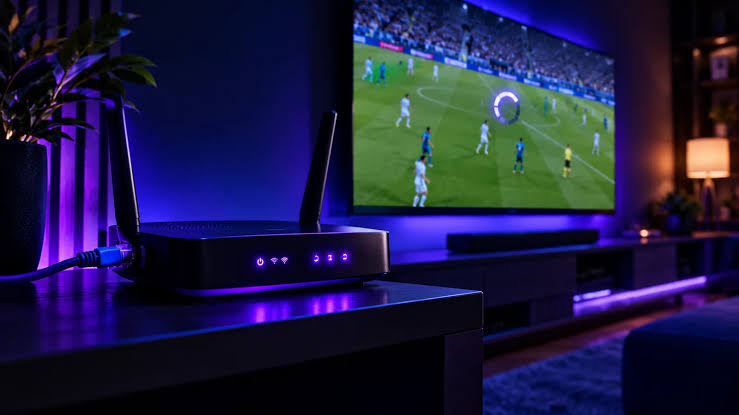
When nordic iptv starts buffering, the service itself is only one possible cause. A weak Wi-Fi signal, an overloaded home network, a slow streaming device, or a badly behaving player can create the same symptom. The fastest IPTV buffering fixes come from testing one part of the setup at a time instead of changing everything together.
This guide also applies to a Firestick IPTV setup, Smart TV, Android TV box, or other compatible device. The goal is to identify where the interruption starts. Once you know whether the problem follows the channel, app, device, Wi-Fi connection, or time of day, the correct fix becomes much clearer.
1. Test the Connection on the Actual TV Device
A speed test on your phone beside the router can look excellent while the television receives a weak signal across the room. Run a test on the streaming device if possible. Do not focus only on peak speed. Live streams need consistency. A connection that jumps between fast and very slow can buffer more than a slightly slower connection that stays steady.
If the signal is weak, move the router into a more open position, reduce distance, or use a better access point. Avoid hiding a router inside a cabinet or directly behind large electronics.
2. Try Ethernet for a Clear Comparison
A wired test is one of the most useful troubleshooting steps. Connect the Smart TV, Android box, or compatible streaming device to Ethernet and play the same channel again.
If buffering disappears, the IPTV service may be fine and the real issue is Wi-Fi. You can then work on wireless coverage instead of wasting time reinstalling apps or changing accounts.
Some Fire TV devices need an Ethernet adapter, but even a temporary wired test can provide a clear answer.
3. Stop Heavy Downloads on Other Devices
Game updates, cloud backups, file synchronization, and several high-quality video streams can create short periods of congestion. IPTV may be the first thing you notice because live television cannot simply pause for a long time and download the whole program in advance.
Temporarily stop large downloads and test again. If the stream improves, you can schedule backups for another time or use router quality-of-service settings if your equipment supports them.
Evening-only buffering can point to congestion in the local network or internet route.
4. Restart the App and Streaming Device Properly
Closing an IPTV app and reopening it can clear a temporary error, but some devices keep apps suspended in memory. Use the device settings to force close the player when available, then reopen it.
If that does not help, restart the streaming device itself. A full restart can clear memory pressure and background processes that build up over days of use.
Do not factory reset the device early in the process.
5. Test Another Compatible IPTV Player
The player can be the problem even when the provider feed is healthy. If your account supports another reputable app, load it on the same device and test the same channel.
If the second app works smoothly, compare settings in the first player. Hardware decoding, buffer settings, and outdated app versions can affect performance. Change one setting at a time so you know what actually made a difference.
Keep your login information private while testing. There is no reason to post account credentials publicly to solve an app problem.
6. Compare Several Channels
One broken channel does not mean the entire service is failing. Test a local channel, a sports channel, and another category. If only one feed buffers, report that specific channel to support.
If every channel struggles at once, check the network, app, and device. If all channels work except during a major event, server or upstream congestion becomes more likely.
Useful details to give support include:
● channel name
● time the issue happened
● device model
● IPTV app name
● Wi-Fi or Ethernet connection
● whether other channels were affected
7. Check for Time-of-Day Patterns
Keep a simple note for two or three days. Does buffering happen only around 8 p.m.? Is it mainly during popular football matches? Does it disappear late at night? Patterns help separate random internet hiccups from recurring capacity problems.
If the issue follows the same busy periods even over Ethernet and across multiple apps, contact the provider with those details. If the issue only appears on Wi-Fi, keep the troubleshooting local.
What Not to Do
Do not install random optimization apps, cleaners, or modified IPTV players from unknown sources. They can introduce security problems without fixing the network. Do not change router settings you do not understand just because a forum post recommends them.
Avoid changing DNS, VPNs, players, cables, and provider settings all at once.
Buffering Is Easier to Fix When You Isolate the Cause
Start with the device connection, test Ethernet, reduce network load, restart the player, and compare another app. Then test multiple channels and look for a timing pattern. These steps cover the most common causes without making the setup more complicated.
A stable IPTV experience comes from several parts working together. The provider feed, internet route, home network, streaming device, and app all matter. Treat them as separate pieces and buffering becomes a practical troubleshooting problem instead of a guessing game.